Appearance
Recovering Lost Player Accounts
How to use the LiveOps Dashboard's Reconnect Devices tool to move a player's login methods back to the account they want to keep when they have lost access.
How to use the LiveOps Dashboard's Reconnect Devices tool to move a player's login methods back to the account they want to keep when they have lost access.
A player can end up locked out of their progress for many reasons. They may have switched devices without a social login attached, signed in with the wrong social account, or accidentally resolved a login conflict in favor of the wrong account. In these cases the player's progress still exists in your database, but their login method points to a different account.
The Reconnect Devices tool in the LiveOps Dashboard lets a customer support agent move login methods from one account to another, so the player reaches the account they want the next time they log in.
The tool moves the Login Methods across player accounts. In the case of a lost account, the user's device has a Login Method for the Source Account. In most cases, this is a freshly created account since the user has just lost their login method and a new account has been created for them. In order to recover the user's access to the Target Account, we can use the tool to move the player's current Login Method to the Target Account. After the move, the player connects to the Target Account the next time they log in.
The Reconnect Devices tool moves Login Methods from other accounts to the currently opened player account. This means you always start from the account you want the player to end up on, and then bring the player's login method over to it.
Before you move any login methods, you need to identify both accounts: the source account the player currently signs in to, and the target account that holds the progress they want back. The source account is usually already in front of you, since it is the account the player reaches when they contact support. Locating the target account is the harder part, and the best approach depends on how the player lost access.
If the player lost access because a social login conflict was resolved in favor of the wrong account, the account they currently sign in to records what happened in its event log. Open that account's player page and find the latest Social Authentication Conflict Resolved event that matches the player's description. For example, if the player describes logging in with Facebook, the matching entry has a FacebookLogin/<token> social login ID in its description.
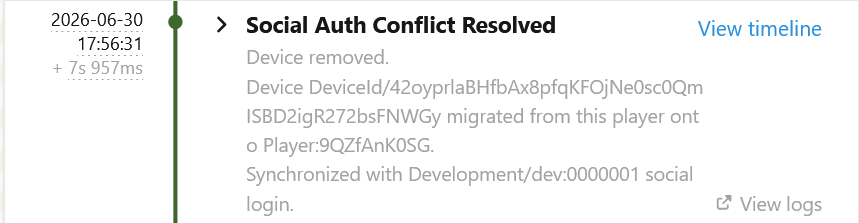
The event names both accounts involved in the conflict, so you can read the lost account's player ID straight from the description. For example, if the description contains ... migrated to this player from Player:ABC., the lost account is Player:ABC.
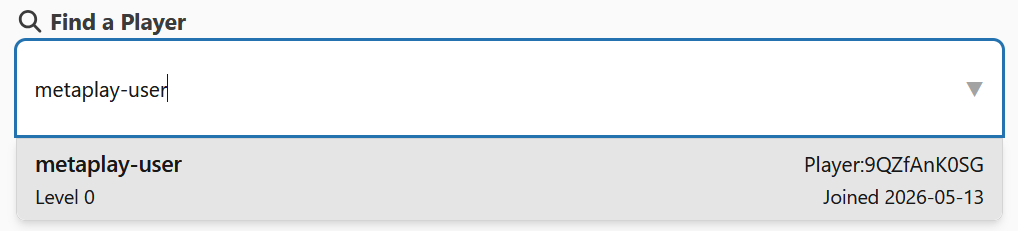
If the player can tell you the name shown on their lost account, search for it in the LiveOps Dashboard player search. A name search can return several accounts, so confirm you have the right one before moving any login methods.
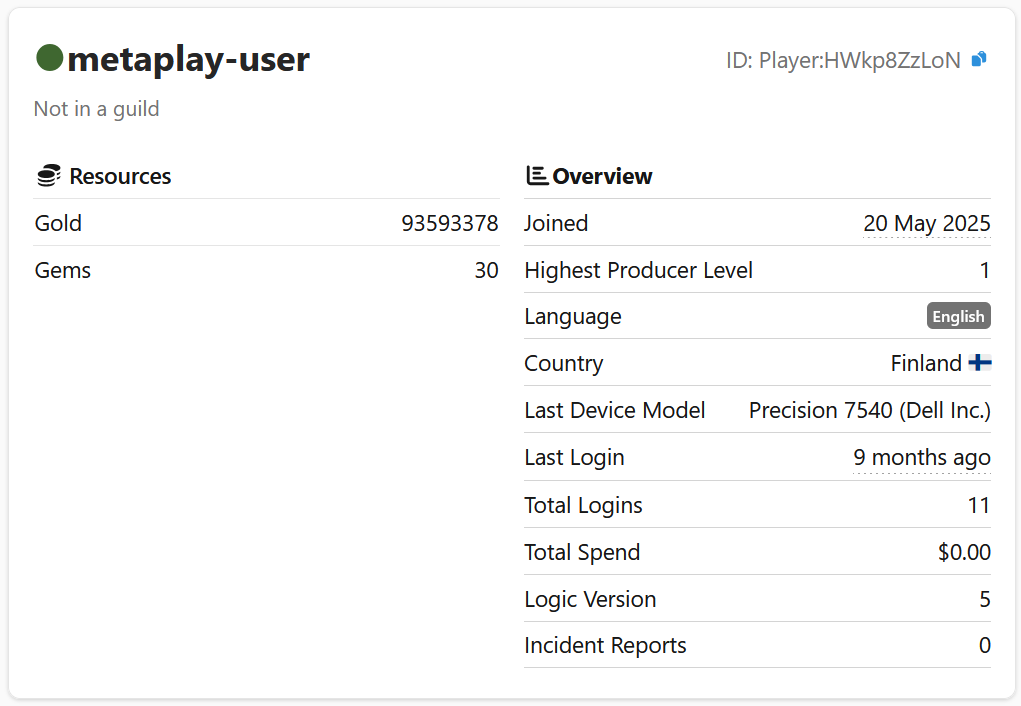
When GeoIP is enabled, check that the candidate account connects from the same country the player is in. You can also compare the device models on the account against the devices the player describes, so the account you pick matches their recollection of events.
If you know the platform-specific identifier of the player's social login, you can search for the account that holds it directly. Enter the search in the form <Platform>:<id>, where the platform prefix matches the login method.
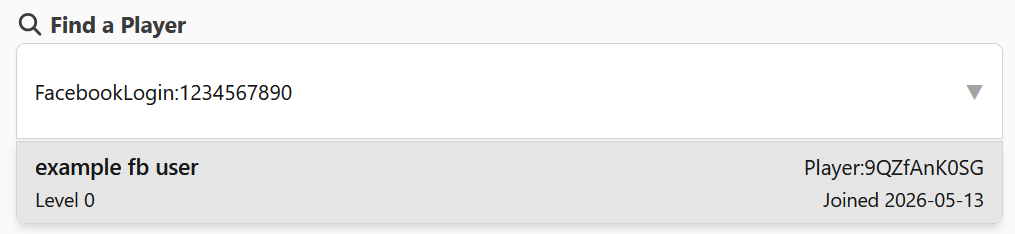
The available platforms are:
FacebookLogin:ID, where ID is the app-scoped Facebook user ID (see Facebook's documentation on app-scoped IDs).Steam:ID, where ID is the player's 64-bit SteamID. The player can find this themselves in their Steam Profile. Note that Steam IDs are public information, and possessing an ID does not guarantee they control the account.SignInWithApple:ID, where ID is the user identifier Apple assigns for the user for this application. This ID is not shown in Apple's account settings, so the player cannot check or provide this ID themselves.GoogleSignIn:ID, where ID is the user identifier Google assigns for the user for this application. The ID is not shown in Google's account settings, so the player cannot look it up themselves.Looking up a player by social ID is cumbersome at best. Possessing an ID does not prove that the user controls the account, and relying on IDs makes the process vulnerable to social engineering. Where possible, identify the account as described in From the Social Login Conflict Resolution Event instead.
Start by identifying the two accounts involved: the target account that holds the progress the player wants back, and the source account that currently holds the login method the player uses to sign in. See Finding the Lost Account for how to locate them.
Open the target account's player page in the LiveOps Dashboard and, in the Admin Actions panel, select Reconnect Devices. In the Source Account field, select the account that currently holds the player's login method. Review the preview: the source account's login methods appear on the left and the target account on the right, with each source login method shown as a checkbox that is selected by default. Uncheck any login methods you do not want to move, leaving the method the player signs in with checked, then confirm with Reconnect Devices.
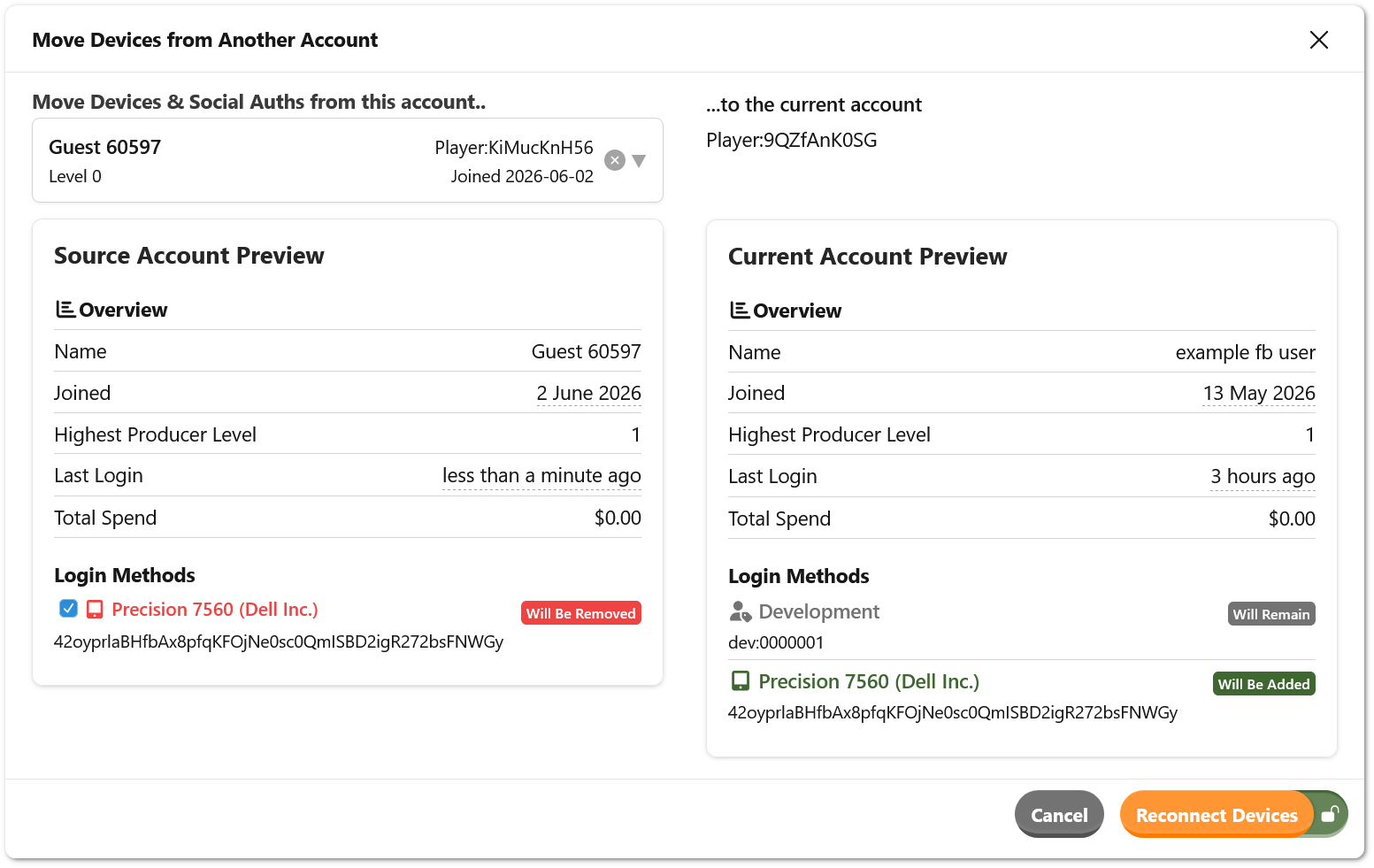
On the next login, the player connects to the target account. If the player is online while the move completes, they are disconnected and reconnect to the target account.
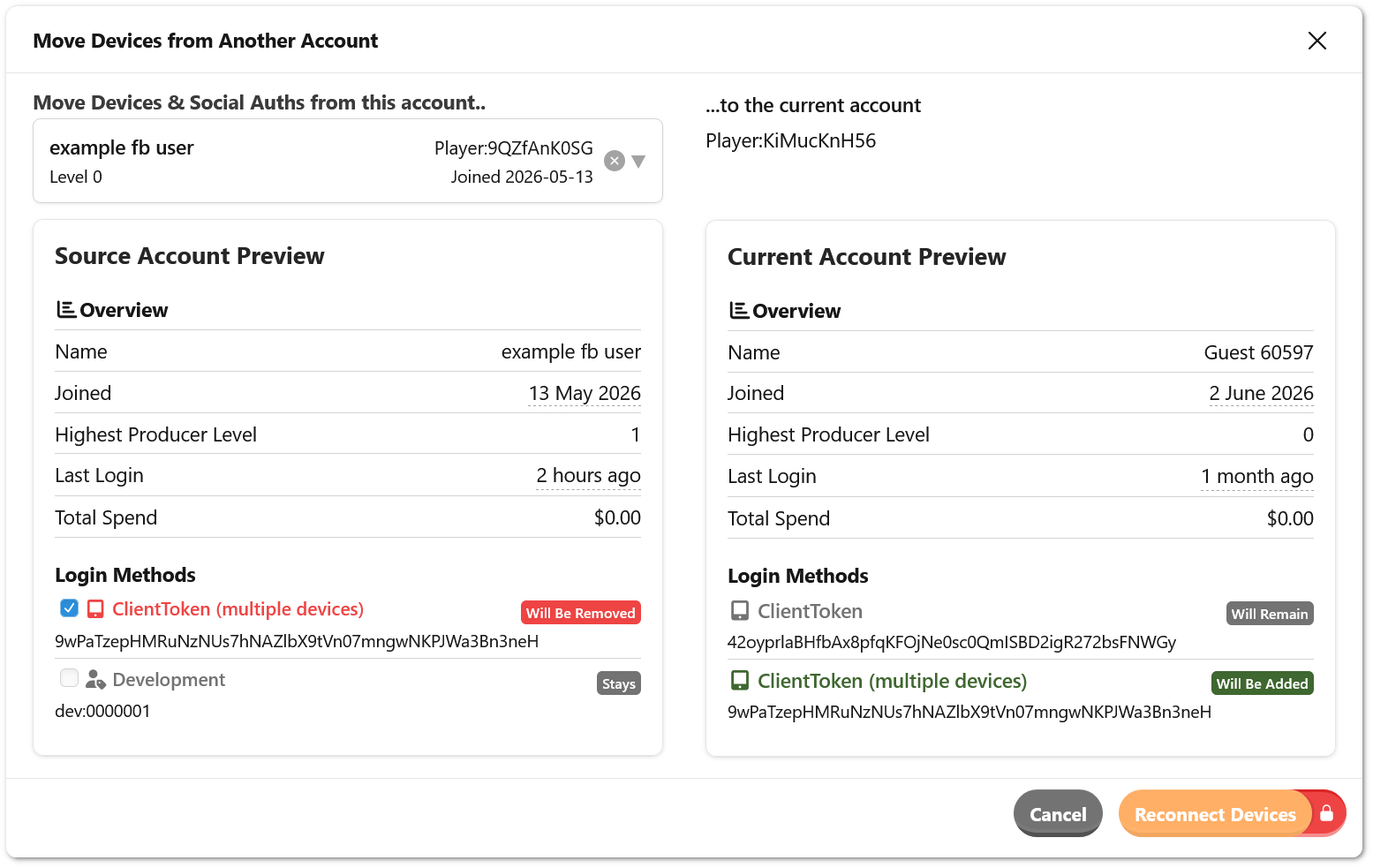
When a source account has more than one login method attached, you can choose which of them to move. Every login method on the source account is listed with a checkbox and is selected by default. Unchecked methods become marked with Stays and they stay on the source account. This is useful when you want to move a single device or social login without affecting the rest of the source account.
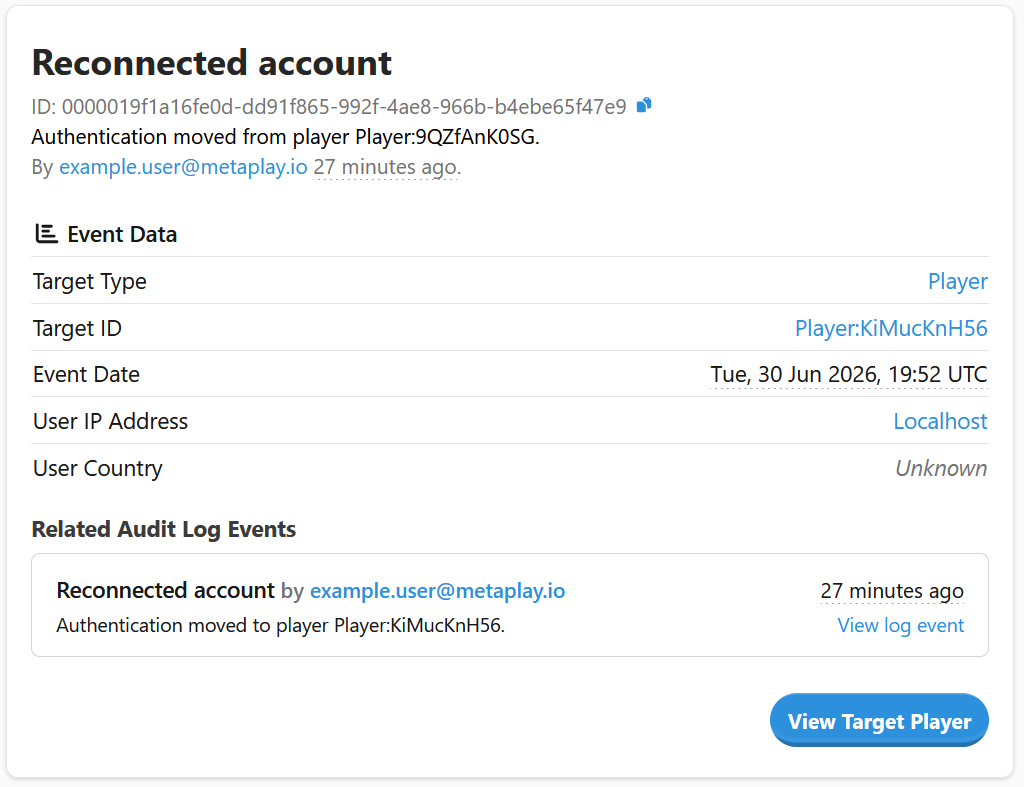
Every login method move is recorded in the audit log of both accounts. The source account gets an entry noting that authentication was moved to the other account, and the target account gets an entry noting that it was moved from the other account. Opening an entry shows the exact login methods that were moved in its event payload, so you can see what changed and reverse a wrong move by moving the same methods back.