
Appearance
Copying a Database Between Environments
How to copy a database between cloud environments by exporting an archive from the source and importing it into the target.
How to copy a database between cloud environments by exporting an archive from the source and importing it into the target.
This guide walks you through copying the contents of your game's database from one cloud environment to another. There is no single "copy" command — instead, you export a database archive from the source environment and then import it into the target environment. Together, those two operations form the copy.
The full sequence (expanded in detail below):
# Stop server in source environment & export archive
metaplay remove server [SOURCE_ENVIRONMENT]
metaplay database export-archive [SOURCE_ENVIRONMENT] my-game-backup.mdb

# Stop server in target environment & import archive
metaplay remove server [TARGET_ENVIRONMENT]
metaplay database import-archive [TARGET_ENVIRONMENT] my-game-backup.mdb

# Re-deploy server into target environment
metaplay deploy server [TARGET_ENVIRONMENT]This operation assumes the source and target environments have the same number of database shards. Most environments use a single shard; larger production stacks and some legacy environments may have more. If the import fails with a shard count mismatch error, contact Metaplay Support — self-service copying is not possible in that case.
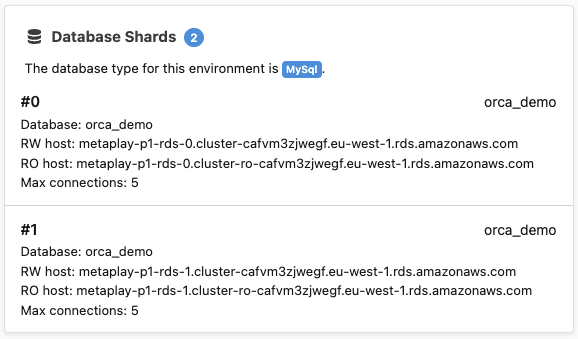
The number of shards is visible in the Database tab of the Environment page in your LiveOps Dashboard.
Avoid data corruption!
Always remove the game server deployment before exporting. Exporting a live database risks data inconsistency.
MyProject$ metaplay remove server [SOURCE_ENVIRONMENT]Replace [SOURCE_ENVIRONMENT] with your environment name or ID (e.g. lovely-wombats-build-nimbly).
Wait for the server to fully shut down before continuing.
Export the entire database into a single archive file:
MyProject$ metaplay database export-archive [SOURCE_ENVIRONMENT] my-game-backup.mdbThis produces a single file — my-game-backup.mdb — regardless of how many shards your environment has. The file is a ZIP archive containing a compressed SQL dump for each shard.
Keep this file somewhere safe until the import has been verified.
File size limit
Archives are intended for small databases under 1 GB in total size. If your database is larger, contact Metaplay Support for an assisted copy.
If the target environment has a game server deployed, remove it before importing:
MyProject$ metaplay remove server [TARGET_ENVIRONMENT]Data loss ahead!
The import is a destructive operation. All current data in the target environment's database will be permanently replaced.
MyProject$ metaplay database import-archive [TARGET_ENVIRONMENT] my-game-backup.mdbYou will be prompted to confirm before the import proceeds. Type yes when asked.
For production environments, an additional confirmation flag is required:
MyProject$ metaplay database import-archive [TARGET_ENVIRONMENT] my-game-backup.mdb --confirm-productionOnce the import completes successfully, deploy the game server to the target environment. On first startup, the server will automatically apply any pending database migrations and verify the database state.
MyProject$ metaplay deploy server [TARGET_ENVIRONMENT]Log in to your game or the LiveOps Dashboard for the target environment and confirm that player data and game state look correct.
If anything goes wrong during import, your original source environment and the .mdb backup file are untouched. You can retry the import as many times as needed.
Generally, no manual renaming is required, regardless of whether your source and target environments have different names.
Secrets are environment-specific, so it's possible that you may want to copy some of the secrets along with the database contents. If that is the case, you can do that with the CLI using the metaplay secrets commands. See Secrets Management for more.
Table names are defined entirely in your game server's C# code, either as DbSet<T> property names in the database context or via [Table("...")] attributes on persisted item classes. They are the same across every environment that runs the same game server build.
Database schema names (the MySQL-level database container for each shard) are always explicitly configured per environment in each shard's DatabaseName setting. The Metaplay CLI import process targets the shard databases as configured in the target environment, so differences in environment naming have no effect on the import.
In short: the .mdb archive carries your game data; each environment's own configuration dictates where that data lands. You do not need to edit the archive file or run any SQL renaming commands.
If you encounter problems or need further assistance, here are some resources to help you: