
Appearance
Getting Started with In-Game Offers
This document contains a step-by-step guide for integrating the Metaplay SDK's in-game offers in your game.
This document contains a step-by-step guide for integrating the Metaplay SDK's in-game offers in your game.
Metaplay SDK's In-Game Offers system is a powerful way to manage your real-money purchases within the game. With it, you are able to flexibly combine different In-App Products and Rewards into purchasable In-Game Offers and organize those offers into Offer Groups that are visible in the game. Since all of this is data-driven and defined in your game configs, you will be able to quickly iterate and release new versions over-the-air without any client updates!
This quick guide shows the steps to integrate Offers into your game. You'll configure a few Offers and group them into an Offer Group. Then you'll implement client UI to visualize the Offers and allow the player to purchase them.
Parts of the integration are game-specific; for those parts, this guide will refer to hypothetical examples which you should adjust to be appropriate for your game.
After completing the quick guide, you may want to have a look at the Offer Configuration page, which describes the various parameters supported by Offers and Offer Groups. To extend the Offers feature beyond the functionality provided by the Metaplay SDK, see Extending Offer Data. For managing Offers across a live game's lifetime, see Offer Lifecycle.
Offers Config Sheet Let's create a new Game Config sheet for the individual Offers. You can put this data in a Google Sheet or a .csv file, or whatever tool you use for authoring Game Configs in your project.
| OfferId #key | DisplayName | Description | InAppProduct | Rewards[0] | MaxPurchasesPerPlayer |
|---|---|---|---|---|---|
| GemOffer1 | Gem Offer 1 | Small gem offer | Offer5Usd | 100 Gems | 5 |
| GemOffer2 | Gem Offer 2 | Large gem offer | Offer10Usd | 200 Gems | 5 |
This sheet defines two simple gem Offers, each of which can be purchased at most 5 times by a player. This example uses a "Gems" Reward type; your game might have some other type of Reward.
Offers by themselves do not do anything; they need to exist in Offer Groups to be shown to players. Next, let's define an Offer Group.
OfferGroups Config Sheet Similarly to the previous step, let's create a new sheet for Offer Groups.
| GroupId #key | DisplayName | Description | Placement | Priority | Offers[0] | Offers[1] | Lifetime | Cooldown |
|---|---|---|---|---|---|---|---|---|
| GemOffers | Gem Offers | Various gem offers | Shop | 1 | GemOffer1 | GemOffer2 | 5h | 12h |
This defines an Offer Group that contains the Offers defined in the previous step. The GemOffers Group is specified to appear in a Placement called Shop - we'll come to Placements later when we talk about the client implementation. The Group stays visible for 5 hours at a time, or until all Offers in it have been sold out. After expiring, it has a 12-hour cooldown before it can be shown again.
Offers need to refer to In-App Products to give them a price point. When we defined our Offers earlier, we referenced Offer5Usd and Offer10Usd for exactly this reason. Now we need to make sure that those IAPs are defined in the game's IAP config. If your game already has suitable IAPs configured, you can refer to those in the Offers sheet instead and skip this step; otherwise, let's define the IAPs now.
We'll assume your game already has an InAppProducts config. Below is a content example for the new offer IAPs. You can adjust fields such as identifiers and prices from this example sheet below as appropriate for your game.
Note the HasDynamicContent field, which for In-App Products used in Offers is always TRUE. Note also the empty reward fields, such as NumGems: In-App Products used in Offers only exist as "placeholder" products, and the real rewards are defined in the Offers sheet.
| ProductId #key | Name | Price | HasDynamicContent | NumGems | DevelopmentId | GoogleId | AppleId |
|---|---|---|---|---|---|---|---|
| (.,. pre-existing IAPs ...) | ... | ... | ... | ... | ... | ... | ... |
| Offer5Usd | 5-dollar offer | 5 | TRUE | dev.Offer5Usd | com.company.game.offer_5_usd | com.company.game.Offer5Usd | |
| Offer10Usd | 10-dollar offer | 10 | TRUE | dev.Offer10Usd | com.company.game.offer_10_usd | com.company.game.Offer10Usd |
To represent the Offers and Offer Groups in the C# code, define the corresponding libraries in SharedGameConfig:
public class SharedGameConfig : SharedGameConfigBase
{
    [GameConfigEntry("Offers")]
    [GameConfigEntryTransform(typeof(DefaultMetaOfferSourceConfigItem))]
    public GameConfigLibrary<MetaOfferId, DefaultMetaOfferInfo> Offers { get; private set; }

    [GameConfigEntry("OfferGroups")]
    [GameConfigEntryTransform(typeof(DefaultMetaOfferGroupSourceConfigItem))]
    public GameConfigLibrary<MetaOfferGroupId, DefaultMetaOfferGroupInfo> OfferGroups { get; private set; }
}
If you don't define a custom class derived from GameConfigBuild, the SDK will build all libraries in your SharedGameConfig class, so you don't need to explicitly introduce these libraries to the builder. Simply run the game config build now to produce a new config archive that includes the Offers and OfferGroups libraries built from the sheets.
If you have a custom GameConfigBuild-derived class, consider if you need to update it to build the Offers and OfferGroups libraries.
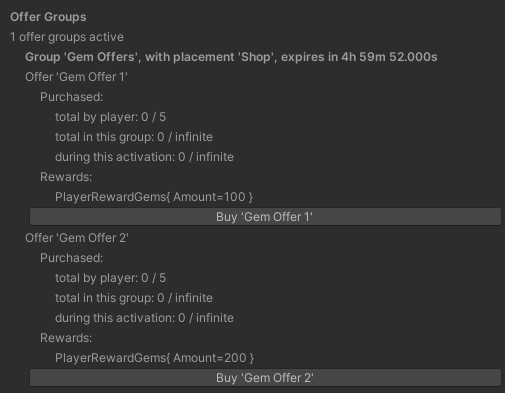
Now is a good time to check that the integration so far is successful. In Unity Editor, open Metaplay Status window via Menu > Metaplay > Status Window. The window includes a handy visualization of the player's active Offers. When the game is running you should see the configured Offers, contained within the Offer Group:
💡 Note
Since the in-app purchase flow involves game-specific integration, the "Buy" button won't work out of the box. It can be made to work by implementing dynamic purchase tracking in the PendingDynamicPurchaseContentAssigned handler of your IPlayerModelClientListenerCore, as in the Idler reference project. Step 7: Implement Purchase Triggering will show how to implement purchasing in your actual game UI.
The editor UI from the previous step is useful for initial testing, but we also want to wire the Offers to the actual game UI. The visualization of Offers is highly game-specific. You might have multiple Placements, each in its own part of the game's UI, or you might, as in these examples, only have a single Placement.
The following code examples assume a simple shop UI that shows the active Offer Group in the Shop Placement. Bear in mind that, due to targeting conditions and limits, there might not always be an active Offer Group for a Placement.
The ShopScript is responsible for showing the correct Offers based on the active Offer Group, and the ShopOfferScript is responsible for managing the UI of a single Offer.
// Object references.
public ShopOfferScript  OfferPrefab; // Prefab for individual offers.
public Transform        OfferList; // Parent for offer game objects.
public Text             GroupStatusText; // Info about the status of the active group.

// Keep track of the current active offer group and its offer game objects.
MetaOfferGroupInfoBase _activeGroupInfo = null;
List<ShopOfferScript> _activeGroupOfferObjects = new List<ShopOfferScript>();

void UpdateOffers()
{
    PlayerModel player = MetaplayClient.PlayerModel;

    // Here, we only show offer groups with the placement Shop.
    OfferPlacementId shopPlacement = OfferPlacementId.FromString("Shop");

    // Find the active offer group in the Shop placement, if any.
    MetaOfferGroupModelBase activeGroup = player.MetaOfferGroups
        .GetActiveStates(player)
        .FirstOrDefault(group => group.ActivableInfo.Placement == shopPlacement);

    MetaOfferGroupInfoBase activeGroupInfo = activeGroup?.ActivableInfo;

    // If the active group has changed since the last update, create new offer game objects.
    if (activeGroupInfo?.GroupId != _activeGroupInfo?.GroupId)
    {
        // \note activeGroup and activeGroupInfo can still be null here!

        _activeGroupInfo = activeGroupInfo;

        // Destroy offer game objects of the previously-active group.
        foreach (ShopOfferScript offerItem in _activeGroupOfferObjects)
            Destroy(offerItem.gameObject);

        // Spawn offer game objects for the newly-active group (if any).
        _activeGroupOfferObjects = new List<ShopOfferScript>();
        if (activeGroupInfo != null)
        {
            foreach (MetaOfferInfoBase offerInfo in activeGroupInfo.Offers.MetaRefUnwrap())
            {
                ShopOfferScript offerItem = Instantiate(OfferPrefab, parent: OfferList);
                offerItem.OfferGroupId = activeGroupInfo.GroupId;
                offerItem.OfferId = offerInfo.OfferId;
                _activeGroupOfferObjects.Add(offerItem);
            }
        }
    }

    // Update the UI for the active offer group.
    if (activeGroup != null)
    {
        // Show group expiration timer.
        MetaActivableState.Activation activation = activeGroup.LatestActivation.Value;
        string expirationText = "";
        if (activation.EndAt.HasValue)
            expirationText = $"Expires in {activation.EndAt.Value - player.CurrentTime}";
        GroupStatusText.text = expirationText;
        GroupStatusText.gameObject.SetActive(true);

        // Show or hide each individual offer based on whether it is
        // currently active or not.
        // Even if the offer group is active, individual offers in it
        // might be inactive due to offer-specific targeting.
        foreach (ShopOfferScript offerItem in _activeGroupOfferObjects)
            offerItem.gameObject.SetActive(activeGroup.OfferIsActive(offerItem.OfferId, player));
    }
    else
    {
        // There is no active offer group.
        GroupStatusText.gameObject.SetActive(false);
    }
}// Object references.
public Text InfoText; // Info about the offer and its status.
// Parameters assigned by ShopScript when it spawns this offer object.
public MetaOfferGroupId OfferGroupId; // The Group this offer exists in.
public MetaOfferId OfferId;
void Update()
{
PlayerModel player = MetaplayClient.PlayerModel;
MetaOfferGroupInfoBase offerGroupInfo = player.GameConfig.OfferGroups[OfferGroupId];
MetaOfferInfoBase offerInfo = player.GameConfig.Offers[OfferId];
// If the offer group has expired, don't update UI.
if (!player.MetaOfferGroups.IsActive(OfferGroupId, player))
return;
// Get the status of the offer within the group.
// This contains info such as how many times the offer has been purchased.
MetaOfferStatus offerStatus = player.MetaOfferGroups.GetOfferStatus(player, offerGroupInfo, offerInfo);
// Display the offer's name and remaining purchase count
string infoText = offerInfo.DisplayName;
int? purchasesRemaining = offerStatus.PurchasesRemainingInThisActivation;
if (purchasesRemaining.HasValue)
infoText += $" ({purchasesRemaining.Value} remaining)";
InfoText.text = infoText;
}Let's augment ShopOfferScript with the ability to purchase Offers. Note that this section assumes that normal Metaplay-integrated IAP management mechanisms have already been implemented in the game, as described in Getting Started with In-App Purchases.
Handle the player's click on the purchase button:
public void OnClickBuy()
{
    PlayerModel             player          = MetaplayClient.PlayerModel;
    MetaOfferGroupInfoBase  offerGroupInfo  = player.GameConfig.OfferGroups[OfferGroupId];
    MetaOfferInfoBase       offerInfo       = player.GameConfig.Offers[OfferId];

    // Start preparing the purchase of the offer.
    MetaplayClient.PlayerContext.ExecuteAction(new PlayerPreparePurchaseMetaOffer(
        offerGroupInfo,
        offerInfo,
        // Specify info for analytics about the context of the purchase.
        // If it isn't needed, it can also be left null for now.
        new GamePurchaseAnalyticsContext(
            screen: "MainShop")));

    // Tell IAPManager to start tracking the offer preparation.
    // After the server has confirmed the offer preparation, IAPManager
    // will initiate the purchase in the IAP store.
    MetaplayClient.IAPManager.RegisterPendingDynamicPurchase(offerInfo.InAppProduct.Ref.ProductId);

    // Here you could also start showing a spinner.
    // To stop showing the spinner when the purchase flow finishes,
    // you can subscribe to MetaplayClient.IAPFlowTracker.OnBestEffortKnownFlowStep
    // and in the handler check for the matching ProductId and FlowStepInfo.Step.IsTerminalStep().
}The game needs to run a "refresh" action in order to activate new Offers. By default, Offers are refreshed only at the beginning of each game session. You'll probably want to refresh offers also during a session, such as whenever the player enters the shop UI:
void OnEnable()
{
    // Player entered the shop; refresh offers.
    // To avoid unnecessary workload on the server, only execute the refresh
    // action if there's actually something to do, and only instruct it to
    // refresh the offers that can be refreshed.
    MetaOfferGroupsRefreshInfo refreshInfo = MetaplayClient.PlayerModel.GetMetaOfferGroupsRefreshInfo();
    if (refreshInfo.HasAny())
        MetaplayClient.PlayerContext.ExecuteAction(new PlayerRefreshMetaOffers(refreshInfo));
}
Refreshing only affects the activation of new Offers and Offer Groups. In contrast, the expiration of Offers is handled automatically and does not require refreshes.
⚠️ Note
If there are lots of configured Offer Groups, the evaluation of GetMetaOfferGroupsRefreshInfo might be fairly expensive. For that reason, it is best to refresh only infrequently, such as in this example, rather than every frame.
The LiveOps Dashboard contains useful visualizations of Offers that will help in validating that they're functioning properly.
The Offers page shows all configured Offer Groups and Offers:
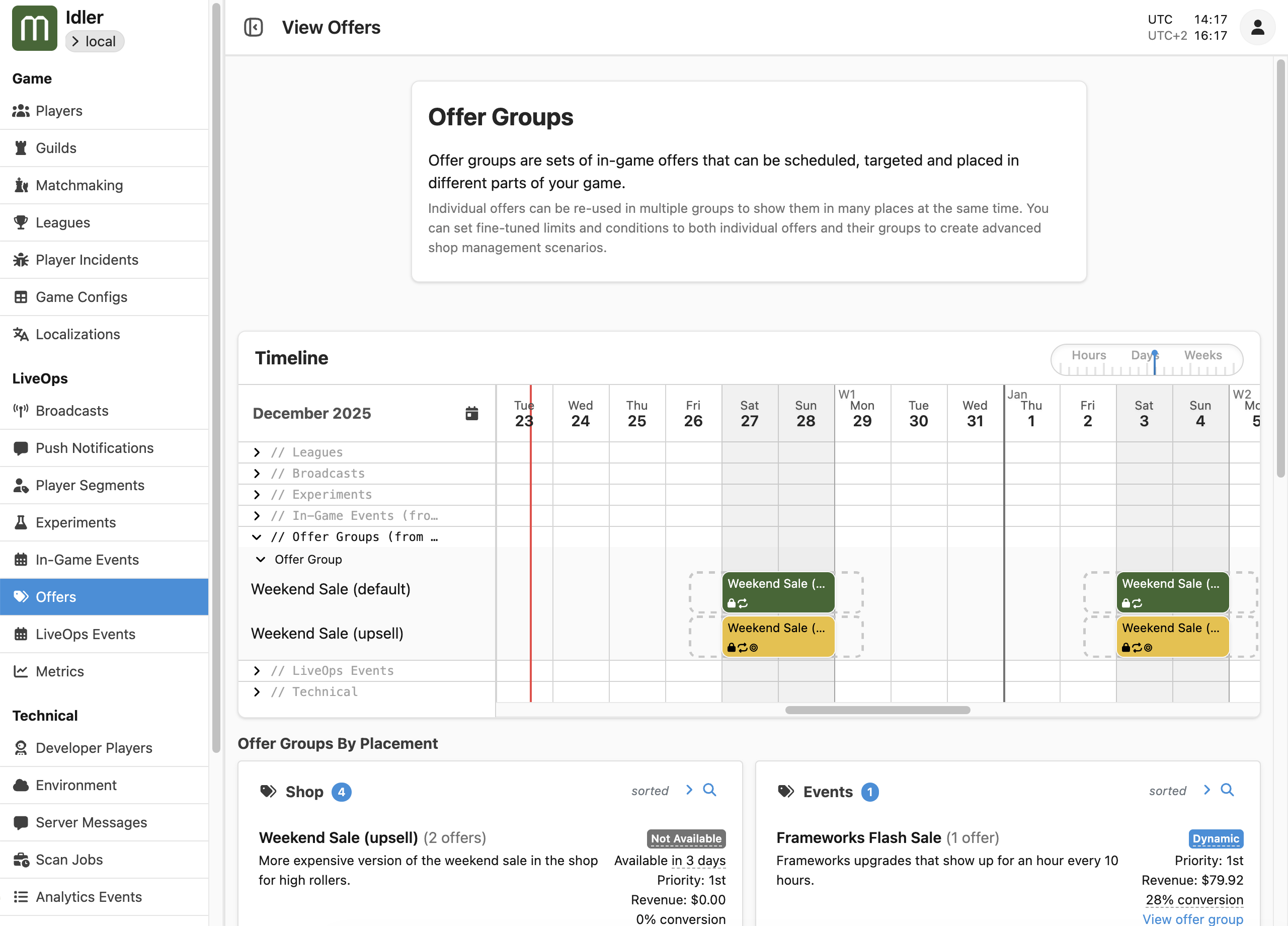
You can configure your Offer Groups to appear on the timeline by following the steps described on the Configuring Offer Groups for the Timeline section of the Using the LiveOps Timeline page.
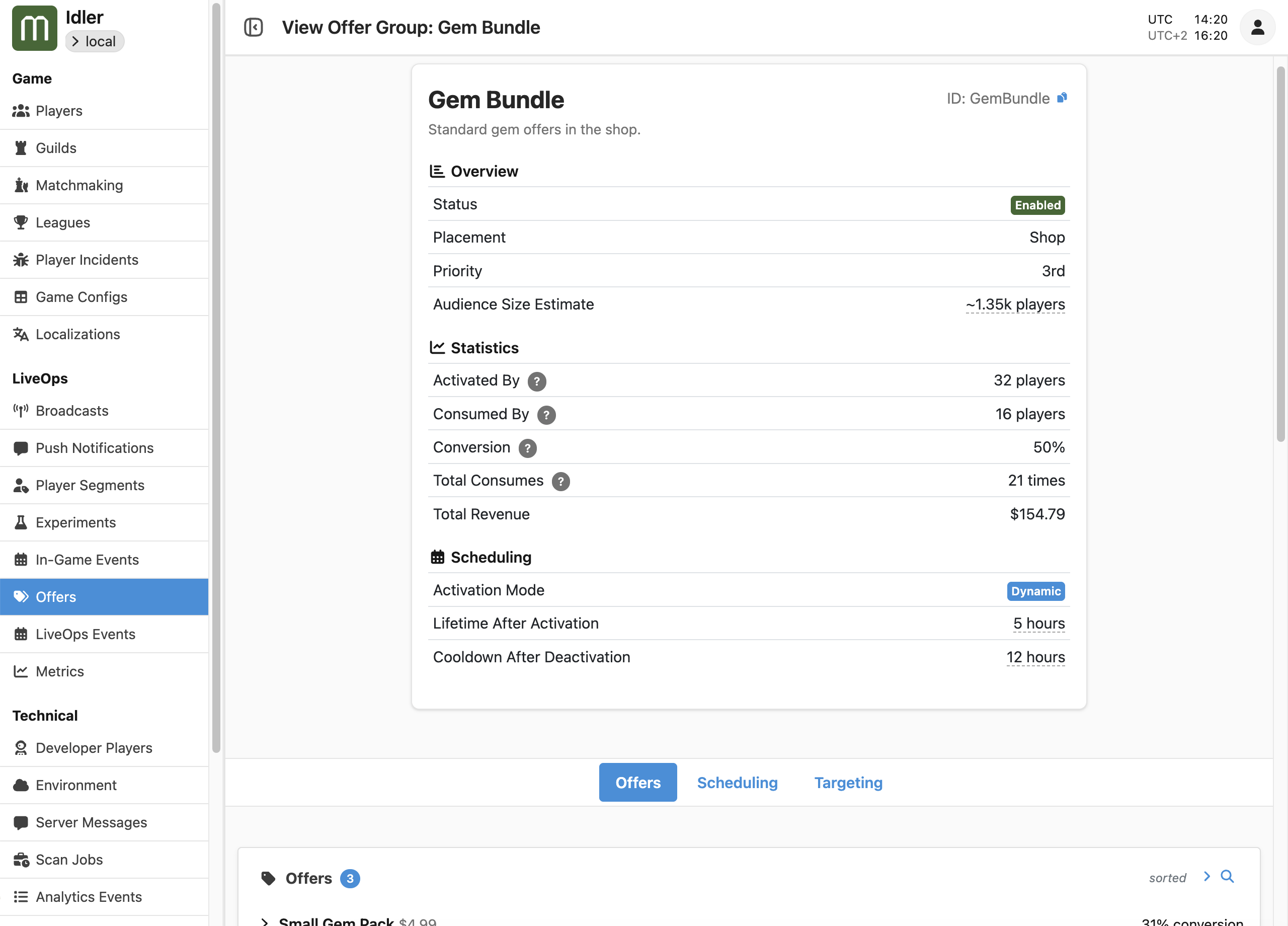
Clicking on View offer group will show detailed information about the Group:
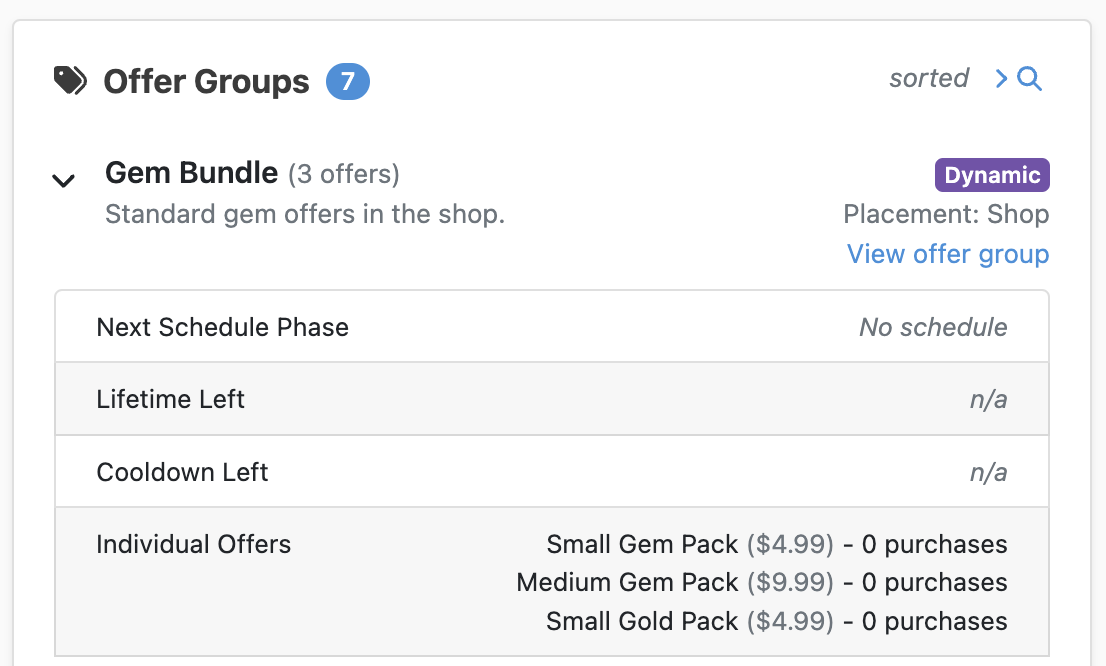
On the Manage Player page, in the Segments & Targeting tab, an Offer Groups card shows the player-specific state of each Offer Group:
Offers and OfferGroups libraries.